• Skip to main content
  • Skip to footer

Current Marketing Services

WordPress Design, Maintenance, and SEO Made Simple

  • About
    • Testimonials
  • Website Services
    • Website Design
      • New Website Pricing
    • Maintenance Services
    • SEO Maintenance
    • Website Marketing Help
  • SEO Services
    • AI Search Optimization
    • SEO Maintenance
  • Resources
    • What to do Once Your Website is Live
    • Blog
  • Contact
You are here: Home / Archives for SEO

SEO

Stop writing new blogs and start updating your old ones!

January 7, 2026 By Webmaster

Quick Summary: How to Update Old Blog Posts

  • Find posts that are already close to ranking (page 2, declining traffic, or outdated content)
  • Update statistics, facts, and examples to reflect current information
  • Improve the opening and structure to match modern attention spans
  • Fix broken links, refresh internal links, and optimize images
  • Do not change the URL – ever!
  • Add an “Updated on” date instead of changing the original publish date for minor updates
  • For major rewrites (30%+ new content), relaunch the post
  • Request a recrawl in Google Search Console
  • Promote the post again like it’s new

Refresh Your Blog Details

Every week, you publish a new blog post. Over the years, those posts pile up into the hundreds. Your database gets bloated. Your site gets heavier.

Your new blog gets a brief spike of traffic… then quietly disappears into the archives.
Meanwhile, you’re still spending hours researching, writing, and fine-tuning new blog posts from scratch.

But what if the fastest way to double your traffic isn’t creating more content, but making your existing content better?

Updating old blog posts is one of the most effective (and underrated) SEO strategies.

Why? Because you’re not starting from zero. You’re building on pages that already have history, authority, and often backlinks, and according to a test run by Ahrefs, AI Assistants often prefer content that is newer and refreshed.

How to Update Old Blog Posts

Here’s exactly how to audit, refresh, and relaunch your old blog posts for maximum impact.

First, Determine Which Posts Deserve a Second Life.

You don’t need to update everything you’ve ever written. Focus your effort where it will actually move the needle. Start by visiting your Google Search Console. Just click this GSC link and select your website from the dropdown at the top. It’s a simplified dashboard that shows exactly which posts are trending.

These three categories usually deliver the biggest ROI:

  • “Striking Distance” Posts – These are ranking on page two of Google (positions 11–20). They’re so close. A few smart improvements can often push them onto page one.
  • “Fading Stars” – Posts that used to bring in solid traffic but have slowly declined over the past 6–18 months. Google liked them before; it just needs a reason to love them again.
  • “Outdated Authorities” – Content with old years in the title (like “2024 Guide”) or posts that mention tools, tactics, or stats that are no longer current.

The Essential Refresh Checklist

When you open an old post, don’t just skim and hit update. Use this checklist to make sure you’re truly improving it for both readers and search engines.

  • Content & Accuracy – Update facts and statistics. If your data is more than 2–3 years old, replace it with current numbers and sources.
  • Update the opening – Attention spans are shorter than ever. Make sure your introduction gets to the point quickly and clearly within the first couple of paragraphs.
  • Add “what’s changed” context
  • Include a section explaining how the topic has evolved recently. This signals freshness to search engines and usefulness to readers.

SEO & Technical Improvements

  • Fix broken links – Run a link checker and replace any 404 errors with high-quality, relevant resources.
  • Refresh internal links – Link from this older post to your newer, related content. This helps pass authority and improves crawlability across your site.
  • Optimize images: Add descriptive alt text and ensure they are properly compressed to keep the page load time low.

The Golden Rule: Don’t Touch the URL (permalink/website address)!!!

This is one of the most common (and costly) mistakes. Even if you change the title, do not change the URL! That URL may already be indexed by Google and may already have backlinks pointing to it. Changing it breaks that connection and often resets much of the SEO value you’ve built. Keep the URL, even if the new title is longer or more specific.

How to Add an “Updated On” Date (Without Changing the Original Publish Date)

Not every refresh deserves a full relaunch. Sometimes you’re:

  • Updating statistics
  • Fixing links
  • Adding a new section
  • Improving clarity
  • …but the post is still fundamentally the same article.

That’s where an “Updated on” date comes in.

It tells readers (and search engines) that the content is actively maintained without pretending it’s brand new.

At the top of the post, display something like:

Updated: January 7, 2026

This builds trust and keeps your editorial integrity intact.

How to Implement This in WordPress

Option 1: Use an SEO Plugin
Many SEO plugins (Yoast, RankMath, etc.) support a “last modified” or “updated” date that you can enable in settings.

Option 2: Add It to the Post Template
Your developer may be able to add a dynamic “Last updated” line under the title that automatically updates whenever the post is edited.

Option 3: Add It in the Content (If Needed)
If you don’t have technical access, add a simple line at the top of the post:

This article was last updated on January 7, 2026.

Important Rule: Only update the “Updated on” date when you make meaningful changes, not just fixing a typo. Otherwise, you train both users and search engines not to trust your published dates.

How This Works with Relaunching

  • Minor updates → Keep original publish date + add “Updated on”
  • Major rewrites (30%+ new content) → You can change the publish date and relaunch
  • Either way → Never change the URL

How to Relaunch Your Old Blog Post Like It’s New

Updating a post isn’t the finish line. Promotion is.
Once you hit “Update”:

  • Request a recrawl from Google – Go into Google Search Console and submit the URL so Google notices the changes faster.
  • Update the publish date (only if it’s a major refresh – If you’ve changed more than ~30% of the content, update the publish date to today.)
  • Share it again – Email it to your list. Post it on social media. Add “Updated for (Current Year)” to the messaging.

Final Thought

Your blog is not a news feed. It’s an asset.
When you treat your content as living, evolving resources rather than disposable posts, you get more traffic, more authority, and more ROI, without constantly starting from scratch.
Sometimes the fastest growth comes not from writing something new…
…but from making your best work better.

If you don’t have time to audit your old blog posts or aren’t sure which posts to prioritize, we can handle it. Our SEO Maintenance Package identifies your high-potential posts and updates them for you, ensuring your existing content keeps ranking and driving traffic.

Filed Under: SEO

Use Alt Text to Make Your Images Accessible and Search-Friendly

August 28, 2025 By Webmaster

Don’t Let Your Images Go Silent… Give Them a Voice with Alt Text

When most people think about web design, they think about picture layouts, colors, and fonts. However, one detail that often gets overlooked or misused is alt text.

stacks of books on a shelf with a peak into a secret forest behine

It may seem minor, but effective alt text can:

  • Improve website accessibility for people using screen readers
  • Help search engines understand your content and rank your images
  • Enhance the experience for every visitor, especially when images don’t load
  • Make your site easier for AI tools (like ChatGPT, Bing Copilot, and Perplexity) to interpret
  • Protect your business from accessibility lawsuits

What Is Alt Text?

Alt text, short for “alternative text,” is a brief written description added to an image in your website’s code. If the image fails to load, the alt text appears instead, letting users know what the image represents. People using screen readers rely on alt text to understand visual content, making it a crucial part of creating an accessible website. Web browsers and assistive technologies also read alt text aloud or display it when images don’t load, ensuring users get the information even without the visual.

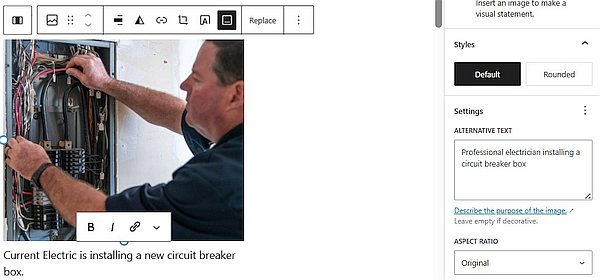
Example of a photo from an Electrician website's alt text used for accessibility and SEO

Beyond accessibility, alt text also helps search engines “see” your images, allowing them to appear in Google Images and other search results. Additionally, if an image doesn’t display due to slow internet or a broken link, alt text ensures your message still gets through. Increasingly, AI bots and tools like ChatGPT, Bing Chat (CoPilot), and Perplexity also use alt text to interpret your images, so accurate descriptions make your site easier for people and AI to understand. Without it, AI may misinterpret or ignore visual content, leading to incomplete or inaccurate representations of your website.


5 Tips for Using Alt Text for Accessibility and SEO

1. Be Specific and Concise

Alt text should clearly describe what’s in the image, without overcomplicating things. Think of it as explaining the image to someone over the phone. Ideally, it should be under 125 characters.

  • ❌ “Electrician North Carolina”
  • ✅ “An electrician troubleshooting a home circuit breaker panel”

2. Consider the Context

The same image may require different alt text depending on its use. Ask yourself: Why is this image here? What role does it play?

  • On a services page: Alt text for an image of a professional at work should be “Expert electrician performing a safety inspection in a commercial building.”
  • On a testimonial page: Alt text for an image of a happy customer with their new outlet should be “Happy customer pointing to the newly installed smart outlet in her kitchen.”
  • For a “Request a Quote” button: The alt text should be “Request a Quote” or “Click here to request a free quote.”

3. Use Alt Text for SEO, but Carefully

Alt text helps search engines understand your images, but keyword stuffing hurts accessibility and rankings. Write for people first, search engines second.

  • ❌ Wrong: “Electrician electrical wiring electrician service wiring expert.”
  • ✅ Better: “Professional electrician installing a circuit box.”

Tip: Remember, browsers and screen readers actually read alt text aloud. If you only add a string of keywords, it doesn’t help users understand the image. Instead of thinking “What keyword should I rank for?” ask, “How would I explain this image to someone who can’t see it?” That approach serves accessibility, SEO, and AI all at once!

4. Skip the words “photo of”

Screen readers already indicate that it’s an image, so there is no need to be repetitive; provide the image description.

  • ❌ “Image of a licensed electrician installing a new fuse box.”
  • ✅ “Licensed electrician installing a new fuse box.”

5. Leave Decorative Images Blank

A purely decorative image, like background graphics, can be left blank. This helps screen readers and AI focus on important text content on the page.


Understanding WordPress Image Fields

You’ll see four fields when you upload an image to your WordPress Website. Knowing how to use them ensures your images work harder for you:

  • Alt Text: The most important field for accessibility and SEO. It’s the description that screen readers read aloud and search engines use to understand your image.
  • Title: Primarily for your own organization in the Media Library. Sometimes it appears as a tooltip when hovering over the image.
  • Caption: A visible line of text beneath the image on a post or page. Great for providing extra context.
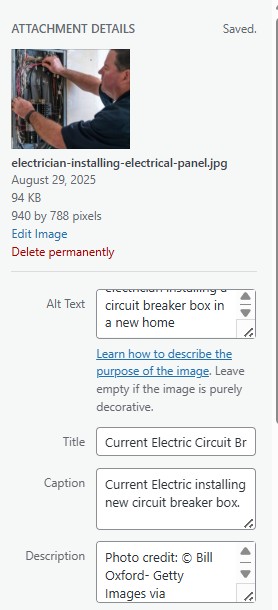
  • Description: Internal notes about the image. Rarely shown on your site, mostly for your reference. It useful for adding the photo source for reference.
Example of media detail fields such as Alt Text and Title when uploading an image to WordPress

Alt Text Quick-Use Checklist

When uploading your image and before publishing your blog post or page, run through this checklist:

  • Do the words describe the image accurately?
  • Is it relevant to the page content?
  • Did I avoid unnecessary phrases like “image of”?
  • Am I skipping purely decorative images?
  • Am I meeting accessibility compliance (essential for online stores)?
  • Is it concise (ideally under 125 characters)?

Final Takeaway

Alt text might seem small, but it makes a big difference. Clear, purposeful descriptions make your website more inclusive, boost search visibility, and ensure that people and search engines (including AI) understand your content.

Remember: Alt text isn’t just for better rankings, it’s also about compliance and protecting your business from legal risks.

Every image tells a story. Use alt text to give it a voice everyone can hear.

Filed Under: SEO Tagged With: accessibility, alt text, image optimization

Footer

Leave a Review

Current Marketing Services would love your feedback.

Post a review to our Google profile.

  • Website Design
  • Website Security & Maintenance
  • Website Changes
  • Testimonials
  • Website Quote Intake Form
  • Contact

Copyright © 2026 · CMS NC, LLC · Current Marketing Services · North Carolina